graph LR
    A["Ollama"] --> B["Run LLMs locally<br/>(CPU or GPU)"]
    A --> C["Download & manage<br/>open-source models"]
    A --> D["Serve via<br/>local HTTP API"]
    A --> E["Customize with<br/>Modelfiles"]

    style A fill:#56cc9d,stroke:#333,color:#fff
    style B fill:#6cc3d5,stroke:#333,color:#fff
    style C fill:#6cc3d5,stroke:#333,color:#fff
    style D fill:#6cc3d5,stroke:#333,color:#fff
    style E fill:#6cc3d5,stroke:#333,color:#fff
Run LLM Locally with Ollama
From setup to deployment: run and serve local LLMs easily with Ollama
Keywords: Ollama, Local LLM, AI deployment, llama3, mistral, phi, generative AI, on-prem AI, LLM inference
Introduction
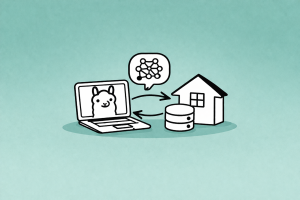
Running Large Language Models (LLMs) locally is becoming a key trend for developers and companies who want privacy, low latency, and cost control.
Instead of relying on external APIs and paying for hosted services, tools like Ollama allow you to run powerful models directly on your own computer with minimal setup. This free open-source tool ensures complete privacy, security, and zero-latency responses.
What is Ollama?
Ollama is a lightweight framework designed to simplify local LLM usage. It enables you to:
- Run LLMs locally (CPU or GPU).
- Download and manage open-source models (including custom configurations and models pulled from Hugging Face).
- Serve models via a built-in local HTTP API server.
- Customize models using simple configuration files.
Supported models include hundreds of options available in the Ollama library, such as Llama 3.1, Llama 2, Mistral, Phi, and Gemma, as well as multimodal models that accept photos, video, and voice.
Hardware Considerations
Since you are running these models locally, you must download the entire model to your machine. You need to ensure you have enough disk space and RAM to load and run them.
For example, the massive Llama 3.1 405B model requires hundreds of gigabytes of space and RAM, which is difficult for standard machines to handle. For local environments, it is highly recommended to start with lightweight or older models (like Llama 2, Phi, Gemma 2b, or Mistral) that most computers can comfortably run.
Installation & Verification
Installing Ollama is incredibly straightforward:
graph TD
    A["Download from<br/>ollama.com"] --> B["Install on<br/>Windows / macOS / Linux"]
    B --> C["Run desktop app<br/>(starts backend server)"]
    C --> D["Verify in terminal:<br/>ollama --version"]
    D --> E["Ready to use!"]

    style A fill:#ffce67,stroke:#333
    style B fill:#ffce67,stroke:#333
    style C fill:#6cc3d5,stroke:#333,color:#fff
    style D fill:#6cc3d5,stroke:#333,color:#fff
    style E fill:#56cc9d,stroke:#333,color:#fff
- Go to the official website at https://ollama.com and click on download.
- Select your operating system (Windows, macOS, or Linux) and install the application.
- Run the desktop application; nothing will appear on your screen immediately because this simply starts a backend server running the Ollama service.
Verify Installation:
Open your terminal or command prompt and type:
ollama
ollama --version
If you receive an output of available commands, you have installed Ollama correctly.
Run Your First Model
Ollama automatically downloads models the first time you run them. To start a model, simply type ollama run followed by the model’s identifier.
graph LR
    A["ollama run llama2"] --> B{"Model on<br/>disk?"}
    B -->|"No"| C["Pull manifest<br/>& download"]
    B -->|"Yes"| D["Load model<br/>into memory"]
    C --> D
    D --> E["Interactive<br/>chat prompt"]

    style A fill:#f8f9fa,stroke:#333
    style C fill:#ffce67,stroke:#333
    style D fill:#6cc3d5,stroke:#333,color:#fff
    style E fill:#56cc9d,stroke:#333,color:#fff
For example, to run Mistral or Llama 2:
ollama run llama2
ollama run mistral
If the model isn’t on your system, Ollama will pull the manifest and download it. If it is already installed, it will instantly bring up an interactive prompt where you can start chatting with the model.
Basic Terminal Commands:
- Exit the chat prompt: Type
/bye. - List installed models: Type
ollama list. - Remove a model: Type
ollama rm <model_name>.
Serve Models via API
Ollama automatically exposes a local HTTP API, meaning you can trigger models from curl, Postman, Python code, or custom software applications.
graph TD
    A["Ollama Server<br/>(port 11434)"] --> B["curl"]
    A --> C["Postman"]
    A --> D["Python requests"]
    A --> E["Custom apps"]

    style A fill:#56cc9d,stroke:#333,color:#fff
    style B fill:#6cc3d5,stroke:#333,color:#fff
    style C fill:#6cc3d5,stroke:#333,color:#fff
    style D fill:#6cc3d5,stroke:#333,color:#fff
    style E fill:#6cc3d5,stroke:#333,color:#fff
If the Ollama desktop application is running, the API is automatically open in the background on port 11434.
If you need to manually invoke the server from your terminal, run the command:
ollama serve
This will run the HTTP API in your terminal instance, allowing you to view all incoming requests.
Using Ollama in Python
You have complete control over how you interact with Ollama in code.
graph LR
    A["Python Code"] --> B{"Integration method?"}
    B -->|"Manual"| C["requests library<br/>POST to localhost:11434"]
    B -->|"Recommended"| D["ollama package<br/>pip install ollama"]
    C --> E["JSON response"]
    D --> E

    style A fill:#f8f9fa,stroke:#333
    style C fill:#ffce67,stroke:#333
    style D fill:#56cc9d,stroke:#333,color:#fff
    style E fill:#6cc3d5,stroke:#333,color:#fff
Method 1: Using the requests library manually
You can send POST requests directly to the local server API endpoint (http://localhost:11434/api/chat). You can even enable streaming mode to grab responses in real-time as the model types them out.
Example code
import requests

response = requests.post(
    "http://localhost:11434/api/generate",
    json={
        "model": "phi",
        "prompt": "Explain AI in simple terms",
        "stream": False
    }
)

print(response.json()["response"])
Method 2: Using the official ollama package (Recommended)
For a much simpler integration, use the official Python or JavaScript packages. pip install ollama
Example code:
import ollama
response = ollama.generate(model='mistral', prompt='Explain Python.')
print(response['response'])
Custom Models with Modelfile
You can easily create your own customized assistants by writing a Modelfile (a simple file with no extension).
graph LR
    A["Write Modelfile<br/>(FROM + SYSTEM)"] --> B["ollama create<br/>pirate-bot -f ./Modelfile"]
    B --> C["ollama run<br/>pirate-bot"]
    C --> D["Custom assistant<br/>ready!"]

    style A fill:#ffce67,stroke:#333
    style B fill:#6cc3d5,stroke:#333,color:#fff
    style C fill:#6cc3d5,stroke:#333,color:#fff
    style D fill:#56cc9d,stroke:#333,color:#fff
Example: Creating a Pirate Assistant
Create a file named Modelfile in your directory with the following syntax:
FROM llama3.2
SYSTEM "You are a pirate. Speak like a pirate and answer all questions in pirate style."
Open your terminal in that directory and build the model by assigning it a name and pointing to the file (-f):
ollama create pirate-bot -f ./Modelfile
Run your custom model:
ollama run pirate-bot
Now, if you say “hello”, the model will respond like a pirate, for example:
"Ahoy matey! What brings ye to these waters?"Deployment Options & Performance Tips
graph TD
    A["Deployment Options"] --> B["Local machine<br/>(CPU)"]
    A --> C["GPU-accelerated<br/>(NVIDIA recommended)"]
    A --> D["Docker / Kubernetes<br/>(scalable production)"]

    E["Performance Tips"] --> F["Use GPU for<br/>faster processing"]
    E --> G["Quantized models<br/>(Q4, Q5) for low RAM"]
    E --> H["Reduce context size<br/>if memory-limited"]

    style A fill:#56cc9d,stroke:#333,color:#fff
    style E fill:#6cc3d5,stroke:#333,color:#fff
    style B fill:#f8f9fa,stroke:#333
    style C fill:#f8f9fa,stroke:#333
    style D fill:#f8f9fa,stroke:#333
    style F fill:#f8f9fa,stroke:#333
    style G fill:#f8f9fa,stroke:#333
    style H fill:#f8f9fa,stroke:#333
- Use GPU (NVIDIA recommended) if available to drastically speed up processing.
- Docker / Kubernetes: You can containerize Ollama and deploy it on GPU-enabled nodes for scalable production.
- Reduce context size or use quantized models (Q4, Q5) if your machine’s RAM is limited.
Conclusion
Ollama makes running LLMs locally simple, fast, and production-ready. With just a few commands, you can download models, chat with them instantly without latency, customize their behaviors with Modelfiles, and seamlessly integrate them into your code via a local HTTP API. It is a powerful solution for building private, low-cost, and efficient AI systems.
Read More
- Integrate with LangChain or LangGraph.
- Build a local RAG system (FAISS, Chroma) with your private data.
- Deploy behind a secure API gateway.